Ear Training

Ear Training is the process of developing your ear for music. If you love music, and especially if you play a musical instrument or produce music, ear training can help you to develop a musical ear so that you:
- hear more in the music you listen to
- understand what you’re hearing, and
- have more creative freedom and control to express yourself through music.
People often assume that to have a good ear for music—meaning to play by ear, to write songs, to have perfect pitch, and so on—you need to be born with the “gift” of music. This is not true.
Musicality is learnable, and even the most impressive and natural-seeming can be learned through dedicated ear training exercises.
In the past, ear training was a slow process involving tedious repetitive work. Now, in the 21st century, training can be easy, fun and effective by using modern technology to make ear training perfectly suit you and your love of music.
The main benefits of ear training for musicians are that it can give you that “ear for music” that lets you play more freely and expressively, play by ear, write songs, and enjoy music much more. The main benefits of ear training for audio professionals are that it gives you a sharper ear to hear the differences that can improve a mix, add excitement to a song, or let you fix problems directly rather than wasting time guessing at what you’re meant to be hearing.
Ear training is also intimately related to singing. Because the human voice is an instrument that everybody has, it is the most natural and direct way to experiment with the musical listening skills that you practice with ear training. You can use singing to help with ear training, and you can use ear training to help with singing—by improving your tuning and intonation, and helping you with sight-singing.
Who does Ear Training?
There are two main groups of people who do ear training:
- Musicians: From every walk of life all over the world, people who play music, learn instruments, write songs and compose symphonies… all use ear training to improve their ear for music.
- Audio professionals: In all areas of audio, from live concert sound engineers to DJs, recording engineers and studio producers… audio professionals use ear training to hone their sensitivity to the details in sound.
Musicians find that ear training helps no matter:
- What instrument they play – guitar, piano, classical violin, and even singing
- What style of music they like – jazz musicians, rock musicians, classical musicians, folk musicians and church musicians
- What their musical goals are – whether playing by ear, improvising, or simply playing more expressively and accurately
By doing focused exercises for listening skills, a musician can enhance their inner musicality and so improve their craft. That’s exactly why all serious music institutions like Berklee College of Music make ear training a core part of the curriculum.
Audio professionals find that ear training helps whether they are:
- Focused on frequencies – tweaking EQ at the mixing desk or using band filters to improve recordings
- Using audio effects – creating the perfect sound by employing state-of-the-art audio effects
- Troubleshooting audio – with live sound at concerts or in the studio, audio pros need to fix sound problems quickly
By equipping them with the enhanced ears they need to hear the detail, identify problems and areas of improvement, and apply their tools directly to get results, ear training lets audio pros stay at the top of their game. That’s why we call the best of them “Golden Ears!”
Why Musicians Are Training Their Ear
Many musicians start out in ear training because it is an essential part of instrument exams, for example the ABRSM exam aural skills tests. However, these tests are quite limited in what they cover, and are often taught in a very non-musical way! This leads to musicians thinking ear training is just about passing tests and learning music theory.
Nothing could be further than the truth!
Ear training is fundamentally about hearing and understanding music.
Musicians who spend time on ear training do it because it helps them be better at music. You can spend hours practicing guitar or piano and still never be able to play by ear. You can play scales and practice repertoire for hours on end, and still not know how to improvise a great solo or write a moving song.
These kinds of “natural” musical skills rely on your brain and your ear.
By doing musical ear training, any musician can gain these skills.
For example, although it can appear effortless and like a “gift” when the best musicians do it, playing by ear is a learnable skill. By developing your ear for music by dedicated ear training exercises, you too can start to instinctively understand what you hear in music, and play it back on your instrument.
Another example: you may have struggled with melodic dictation, or music transcription in the past. By improving your musical ear with ear training, you can connect the sounds of music with their written form so that music dictation and transcription become easy, natural activities.
Why Producers and Audio Engineers are Training Their Ear
Ear training has long been a part of audio engineers’ professional training, and anyone who spends hours listening to music recordings and making minor adjustments to improve the sound can benefit from training their ears.
Like in the music world, those who naturally start out with better ears are revered as “gifted”. They even have a name for it: “Golden Ears”
But just like with music, in the audio realm, ear training can help you get those seemingly instinctive skills.
For example, most engineers gradually develop a sense of how to adjust EQ bands to improve the sound balance of multiple tracks on their DAW. By doing dedicated ear training these skills can be tightly honed, so that rather than being a slow process of trial-and-error on a 10-Band EQ, they can look at a 30-Band EQ and instantly tweak just the right band up or down to improve the mix.
Audio ear training isn’t just about frequencies. It’s also about other aspects of sound, such as the audio effects applied. This includes reverb, distortion, modulation effects and so on—these all change the nature of the sound, and by doing focused ear training exercises, audio pros can learn how to set FX to create the perfect sound for any situation.
With dedicated audio ear training, any audio professional or recording musician can upgrade their ears until they too gleam like those renowned “Golden Ears”!
Why Music Fans are Training their Ear
Music is amazing, beloved by people of every age, gender, race, and culture. Wouldn’t it be great if there was a way to enjoy every piece of music you listen to. (every song, every chord, every note) more?
Ear training isn’t just for serious musicians and audio professionals. Even if you are simply an enormous music lover, musical ear training can help you hear more in music, understand music more, and enjoy music more.
It’s like the difference between visiting a foreign country and enjoying the overall experience of being immersed in the culture… and actually learning a bit of the language before your trip, so that you can read signs, understand snippets of conversation, and actually meet some of the locals.
Ear training for music fans can let you feel like a musician yourself, without the need to ever pick up an instrument. You can learn the names of those musical elements that sound so familiar, and get a better musical ear to appreciate a wider variety of musical styles and genres in a meaningful way.
Why Singers are Training their Ear
Ear training is a powerful tool for singers too. Whether you’re a:
- solo singer
- vocalist in a rock band
- singer in your local church choir or community choir, or
- you just enjoy singing in the shower
you can learn to sing more accurately and more confidently by doing singing ear training.
The main benefits are that developing your sense of relative pitch with ear training gives you better intonation (so you’ll never sing out of tune) and lets you sight-sing with confidence, by using interval recognition skills to judge note leaps reliably and sing them accurately. Singing harmony also becomes easier, as your musical ear is more sensitive to the other notes being sung or played. A vital skill for choral singing!
Singing is one of the most fun and natural forms of musical expression, and singing ear training can ensure you make the most of your inner instrument: the voice!
→ Learn more about singing ear training
Types of Ear Training
There is a wide variety of types of ear training—just like there is a wide variety of musicians, music-lovers and audio professionals!
Pick a topic in music, and the chances are there is a corresponding form of ear training to help you better recognize, create, or understand that topic by ear. Your ears are your primary tool in music, and so doing ear training exercises to target whatever area you’re working on is a truly effective way to boost your improvement in that area.
Here are some of the most popular ear training topics.
Pitch Ear Training
Pitch ear training is all about the notes in music, and specifically their pitch: how high or low they are. Every note has a particular pitch, and humans are naturally able to hear this property. Even when you listen to somebody speak, you can hear the pitch of their voice go up and down (important for language ear training, especially for tonal languages like Chinese!)
There are two distinct ways you can tune your ear in to the pitches of notes:
- You can identify them in “absolute” terms: without any other point of reference. We call this your sense of absolute pitch or “perfect pitch”.
- You can identify them by comparison to the pitch of other notes (for example, the note before or after it). We call this your sense of relative pitch.
You can do absolute pitch ear training and relative pitch ear training. Relative pitch is more important for most musicians, but in fact it’s most beneficial to do a bit of both!
Absolute Pitch and “Perfect Pitch”
One of the most controversial topics in music: Perfect Pitch!
Perfect pitch, or more accurately called “absolute pitch”, is the ability to identify a note by ear, without using any known note as a point of comparison.
A musician with perfect pitch can tell you out of nowhere that a single note played is a C rather than a C#, or a G, or any other note. They can tell what key a piece is in, without using an instrument to check. They can write down music they hear in their head exactly, without needing to play it on an instrument or use computer software to check it sounds how they think it will.
So absolute pitch is certainly a powerful skill. But because it’s so impressive, and some people naturally have a strong ability in this skill, many people incorrectly assume it is a “gift”, something that “natural musicians” are born with and nobody else can do. Although some people do have absolute pitch from a young age, abilities may vary (they’re not always “perfect”!) and it is a learnable skill.
One way to learn absolute pitch is to start with reference tone ear training, such as using a tuning fork or the note “middle C” as a single pitch you will practice identifying regularly. With this kind of perfect pitch ear training you drill the sound of the pitch into your brain—and believe it or not, your brain is more than capable of learning the particular frequency of that note.
Once you have internalized one reference pitch like this, you can either extend your perfect pitch skills by training with more notes, or combine it with relative pitch ear training to identify other notes based on your reference pitch.
→ Learn more about perfect pitch ear training
Relative Pitch
For most musicians, relative pitch ear training is far more useful than absolute pitch ear training. It is rare that one needs to identify an exact note without any point of reference, but judging pitch differences and identifying one note based on another is a practical everyday musical skill.
Relative pitch is primarily developed using interval training and chord training. An interval is simply the distance in pitch between two notes, and by practicing identifying intervals, and later chords (combinations of three or more notes), you improve your sense of relative pitch and can apply it directly to help you in music. For example, whether you realize it or not, the following musical activities all depend on your relative pitch skills:
- playing by ear
- composing music
- writing melodies and chords for songs
- improvising or playing solos
- sight-singing music and harmonizing in a choir
Relative pitch also helps you to connect traditional music notation with the actual sound of the music. At first when you learn to read music you probably connect it with your instrument, learning how to move your fingers to play the notes written. But add in relative pitch ear training and the notation comes to life, as you can look at the notes on the page and actually hear in your head how the music would sound. This skill is called audiation—and it’s fundamental to developing real musicianship!
Doing relative pitch ear training helps you with note recognition in a variety of musical contexts, from working out chord progressions to play songs by ear, to writing down the music you hear in your head, or improvising more freely and creatively on your instrument. If you also practice perfect pitch ear training you can anchor these skills to particular keys too, knowing not just the relationships between the notes, but exactly which notes they are.
→ Learn more about relative pitch ear training
Being In Tune
Have you ever worried about whether you’re in tune or not? It’s a point of concern and sometimes embarrassment for a lot of musicians. Nowadays, with electronic tuners, instrumentalists like guitar players don’t need to worry so much about being able to hear if their instrument is perfectly in tune. But it’s still important to be able to recognize whether you’re playing in tune, whether your string bends are pitched right, and so on. Pitch ear training can help develop your musical ear in this way.
There’s also one group to whom the digital tuner is no help: Singers!
If you’re singing in a choir, performing solo, or fronting a band, you need to be able to pitch your notes accurately, and be confident that you’re singing in tune. Even if you’re on backing vocals, or just occasionally want to sing something to express a musical idea, pitch ear training can help you develop your sense of tuning and connect it with your voice so that you always sing in tune.
Interval Ear Training
Interval recognition is where most people get started in ear training. It’s the fundamental skill for relative pitch: identifying one note based on another, by accurately hearing the difference in pitch, which we call the “interval” between the notes.
For example, with interval ear training you can learn to hear that one note is a “perfect fifth” above another note, and if you know that the first note was a C, you can work out that the second was a G. In this way you can work out all the notes in a melody, or figure out chord progressions by ear. Other types of interval you’ve probably encountered in music theory or aural skills tests are perfect fourths, octaves, major thirds and minor thirds.
Intervals are the building blocks of melody and harmony, and so if you want to understand the notes of music, interval training should be central to your ear training practice.
You can improve interval recognition by doing specific interval ear training exercises where you practice hearing the difference between one type of interval and another. Most people will start with a small set of intervals (e.g. just thirds, or fourths and fifths), and gradually introduce the inversions and harmonic forms.
→ Learn more about intervals ear training
Chords Ear Training
Chords are how musicians tend to think about harmony in music: multiple notes played at once. Different combinations of notes will have different characteristic sounds based on the relative pitch relationships between their notes, and chord ear training teaches you to identify these different chord types by ear.
Any chord is a combination of notes above a root or tonic note, and using relative pitch ear training and specific chord ear training exercises you can train your ears to hear what makes these combinations distinctive. Chord recognition like this is useful for playing by ear and writing music, but also just enriches your enjoyment of music by building your harmonic appreciation skills and letting you hear more detail in the music you listen to.
One you’ve mastered recognizing the basic types of chord you can move on to training more advanced chords (like jazz chords) and recognizing chord inversions. These are all a part of relative pitch ear training, so your skills combine and you can actually identify a chord using your ability to identify an interval.
→ Learn more about chords ear training
Recognizing Triads
There are four types of triad chord which are the basis of most commonly-used chord types, so if you’re starting chords ear training, learning to recognize triads is a good first goal. The four types are major triad, minor triad, augmented triad, and diminished triad, and each has quite a different character.
(embed sound examples)
If you want to practice chord ear training, start with triad ear training and particularly learning to distinguish major and minor triads.
Recognizing Jazz Chords
One thing which makes jazz music distinctive is its use of more interesting harmonies than other musical genres, and this boils down to using particular types of chord. Loosely called “jazz chords”, these include seventh chords (which are four-note chords featuring the seventh note of the scale) and extended chords (which add in notes further than an octave away from the tonic).
Ear training for seventh and extended chords, and jazz ear training in general can let you recognize and understand these advanced harmonies in music, and use them in your own composing and playing.
Scales Ear Training
Let’s be honest: most musicians dislike scales. They are often simply a dull part of instrument practice and an unwelcome part of instrument exams! But fundamentally a scale is simply the palette of notes you draw on in a particular musical context—so connect the theory of scales with their actual sound (by doing scale ear training) and scales can become a powerful tool in your musical arsenal.
Just like with chords and intervals, there are different types of scales, and scale ear training lets you learn to recognize these by ear. At first you learn to recognize the scale when played up and down in sequence from the tonic, but as you improve your scale recognition skills you can learn to recognize scales when they’re used in melody and harmony too.
If you play an instrument you’re probably already familiar with major scales and minor scales. Use scale training to build on this to more advanced scale types and more versatile scale recognition.
Chord Progressions Ear Training
If you want to learn to play songs by ear, the best kind of ear training to do is chord progressions ear training. A chord progression is just what we call a sequence of chords in music, so if you’re trying to work out how to play the accompaniment of a song by ear, chord progression ear training is the key.
This is another relative pitch listening skill, as you recognize the sequence of chords based on the relationship between each chord and the next chord, or each chord and the key’s tonic. You listen for the interval between each tonic note. Practicing chord progression ear training builds up this kind of relative pitch ability in your ear.
Here’s a surprising fact: a staggering proportion of songs use just three or four chords! That’s why three chord songs and four chord songs are hot topics in chord progressions ear training.
3 Chord Songs
If you’ve ever wondered why so many modern songs sound the same, or why a new pop song on the radio can sound really familiar even the first time you hear it, the reason is: three chord songs. There are three chords which work particularly well together, called the “one” “four” and “five” chords, normally written in roman numerals “I” “IV” and “V”. Doing chord ear training for just these 3 lets you play a huge proportion of popular songs by ear.
If you’ve wondering what people are talking about when they say:
- “play a one four five”
- “its a 1, 4, 5 in G”
- “it moves to the dominant, and then half a bar on the subdominant”
.. or you’re looking for the fastest way to improve your playing by ear skills: it’s time to do some three chord song ear training!
4 Chord Songs
Just one notch trickier than three chord songs, you can improve your play-by-ear skills even more dramatically with some ear training for four chord songs. By adding the “relative minor” or “six chord” (written “vi”) even more chord progressions are unlocked. Again, you’d be amazed just how many classic pop and rock songs use just these 4 chords!
There’s a reason they call these the “magic four chords”. Chord progressions ear training with the 1, 4, 5 and 6 chords can keep you playing songs by ear for a very, very long time…!
→ Learn more about chord progressions ear training
Rhythm Ear Training
Many musicians neglect rhythm ear training or take rhythm skills for granted, but having a tight sense of rhythm, and the ability to keep the beat and have accurate timing when you play is a big part of what distinguishes a professional-sounding performance from an amateurish one.
Some people are born with a strong natural sense of rhythm, but for most musicians it’s something that takes practice, and rhythm ear training can help you improve your rhythm in music. This is of course particularly important for players of rhythm instruments (drums, bass guitar, etc.) and percussionists but every musician can benefit from training their sense of rhythm!
Rhythm ear training doesn’t just help you become a more polished performer, it also unlocks your awareness of different musical genres, since rhythm is so often key to what defines a musical style or genre. Doing rhythm ear training exercises teaches your ear to distinguish rhythmic style in a more sophisticated and useful way.
A closely related area is tempo ear training: learning to keep a steady beat, and judge changes in musical tempo (BPM) accurately and reliably.
→ Learn more about rhythm ear training
Ear Training and “Playing By Ear”
Playing By Ear is one of the most highly-prized musical skills, and musicians who can play by ear have an unparalleled freedom and enjoyment of music. Despite the popular misconception that only certain musicians are capable of playing by ear, it is a learnable musical skill which depends on your listening skills.
By doing ear training focused on the various aural skills necessary to play by ear, any musician can learn to play music by ear. If you play an instrument you can almost certainly already play some things by ear. Clapping back a rhythm. Singing back a melody you have heard. Slowly working out how to play your favorite song by ear. These are all basic versions of playing by ear, and you can build on them with ear training exercises to increase your ability and play more advanced music by ear.
Many people interpret the phrase “playing by ear” to mean “play songs on guitar without written music”. This is indeed one form of playing by ear, and chord ear training can help any guitar player learn to do this. But it is just one part of a broader set of play-by-ear skills.
→ Learn more about playing by ear
Ear Training for Improvising Music
Improvising music can seem like a very advanced musical ability – the territory of professional jazz musicians, or “natural” blues musicians. Some musicians spend time learning to improvise, but in very restricted ways, like the guitarist who meanders up and down the pentatonic scale but can’t really venture beyond that sound.
Improvisation ear training can build up your ability to bring the music in your head out on your instrument, and improvise in a far more creative, expressive and confident way. Rather than being trapped in particular scales and known patterns, you can use the relative pitch listening skills developed through interval ear training and chord ear training to know which notes you want to play to achieve the musical impact you intend.
Whether you play rock music, jazz, or blues, learning to improvise is a very empowering experience, and can lead to a confidence on your instrument that’s hard to reach when you always depend on written music, or playing other people’s compositions by ear. Improvisation ear training builds the core listening skills you need to improvise freely.
Ear Training for Composing Music
Composers and song writers depend on their musicality to create new and interesting music. When a composer sits down to write something new, they depend on their “mind’s ear”, the ability we call “audiation” to first hear the music in their mind, and then bring it out, on paper, through software, or on an instrument. Ear training develops this core musicality.
If you want to:
- write better songs
- compose more innovative music
- make the process of writing music more easy and natural
you’ll find that ear training can equip you with the “inner ear” you need.
Audio Frequency Ear Training
For music producers and other audio professionals, audio frequency recognition is the number one priority in ear training. Audio frequency ear training teaches your ear and brain to more precisely process the incoming sound and classify it into “bands” of frequency. For example, the bass bands (20Hz-262Hz), mid bands (262Hz-2kHz) and treble bands (2kHz-21kHz).
By doing frequency ear training exercises, you can learn to hear the EQ balance by ear and so adjust your mix to improve the sound. You might hear that the 240Hz band is too loud, and tweak that slider on your mixing desk or DAW software to cut it by a few decibels.
Frequency ear training can start off from the basic appreciation of bass/mid/treble, move on to 10-band EQ training (with white noise or pink noise, and then real music) and then even into the third-octave bands of a 30-band equalizer!
This sensitivity to the frequencies in music, and ability to act accordingly to improve the mix or fix problems is what gives the best studio engineers the name “golden ears” – it’s all in the ear, and it all comes from ear training.
→ Learn more about frequency ear training
Audio Effects Ear Training
These days it’s rare for recorded music not to feature audio effects (FX) of one kind or another. Depending on the genre and the artist, it could be a distortion effect, compression, reverb, modulation effects, or other weird and wacky audio processing! There’s almost certainly some audio effects at work.
Doing audio effects ear training can teach you to:
- hear when FX are being used
- judge the settings for FX and know how to adjust them
- combine FX to achieve exactly the sound you have in mind
You might be a guitar player using effects pedals to control your tone, or a producer making adjustments in the studio when recording an album, or a live sound engineer responsible for creating the band’s characteristic sound. Whatever the case, honing your audio effects listening skills with FX ear training can help make sure you know exactly what impact effects have on music.
→ Learn more about effects ear training
Ear Training Apps
In the past ear training was a slow and boring process, most often done by sitting at a piano and bashing away at notes for hours trying to drill particular sounds into your head.
Now, ear training can be fun, varied and exciting, and one of the best ways to achieve that is with ear training apps. There are iOS ear training apps and ear training apps for Android, not to mention lots of online ear trainers. They can all be used to do ear training in a way that suits you, at whatever time and place is convenient.
For example, use an interval app to develop your relative pitch, or a melody app to practice playing by ear
Do mobile ear training or ear training online, but make sure you take advantage of modern technology to make your ear training exercises enjoyable!
Ear Training is not Music Theory!
Ear training is often associated with music theory, but in fact it is a separate skill and something worth studying in its own right. You can view instrument learning, music theory, and ear training as a trio which work together, each complementing the others, and each bringing its own musical benefits:
- Instrument Learning
- Music Theory
- Ear Training
None of these alone will make you a truly great musician! The fastest way to become a confident and excellent musician is to study all three together.
It’s helpful to have some knowledge of music theory and music notation to do ear training, so that you understand the basic concepts like intervals and scales. But really, ear training is about developing the listening skills that correspond to those theoretical concepts.
Ear training isn’t totally abstract like music theory and it isn’t totally practical like learning an instrument. Ear training is what bridges the two worlds and allows you to use your music theory when you play your instrument. It brings the theory to life by giving you the listening skills to recognize and use the theory ideas in real musical situations.
Can Ear Training Help if I’m Tone Deaf?
“Tone deaf” means being unable to hear how high or low notes are.
Sadly, many people go through life believing that they are “tone deaf”. This normally stems from being told that they “can’t sing” or that they are “out of tune” when singing as a child.
In fact research has shown it is only a tiny proportion of the world’s population who are truly tone deaf!
The vast majority of people are perfectly capable of having a good sense of pitch, and the ability to sing in tune. Just two things hold them back:
- Under-developed listening skills: they can’t hear whether they are in tune or not
- Under-developed vocal control: they can’t reliably sing the note they want to
The combination of these two leads to unreliable singing performance, and many people get frustrated or embarrassed and simply declare themselves “tone deaf” – and miss out on all the joys that music can bring!
There is one powerful solution to both of these problems: ear training. By doing pitch ear training, most anyone can fix problem #1 and learn to reliably distinguish “in tune” from “out of tune”. By using singing ear training, you can quickly improve the control you have over your voice’s pitch and reliably produce the note you intend to.
A small amount of ear training can have you singing in tune in no time—and you’ll never call yourself “tone deaf” again!
Free articles about Ear Training
Rhythm Improv Games (with Jeffrey Agrell)
Dive into rhythmic improvisation in this segment of Jeffrey Agrell’s Musical U masterclass on “Exploring Rhythmic Improv”. Jeffrey introduces a rhythm vocabulary, using simple hand-drumming as a way to experiment and explore.
Exploring Common Chord Progressions
Explore common chord progressions, what makes them so powerful, and how they’re used in popular music to make a song stick.

Where did Klezmer come from? (with Paul Green)
Klezmer: the very word oozes funkiness. Where did this mysterious genre of Jewish music—half ecstatic dance, half mournful cry—come from? We spoke with one of Klezmer’s foremost 21st-century proponents, Paul Green, about the origins and development of the klezmer...
What Makes Klezmer Sound Like That? With Paul Green
On first listen, Klezmer sounds oddly familiar. Learning the musical elements of this passionate, funky Jewish genre opens up new expressive possibilities.

A Klezmer Journey, with Paul Green
Paul Green lives in two worlds – as his early musical love of jazz meets his Jewish roots, creating a new expression of the old tradition of klezmer music.
What is "playing by ear"?
Can you play by ear? That’s a common question in musician’s circles, a phrase that’s often used. “He’s a great musician, he can play by ear” “I’ve been learning my pieces… but I wish I could play by ear instead!...
How to Learn to Sing in Tune
Discover a simple four-step process you can start using today to go from being tone deaf to easily and confidently singing every note with perfect pitch.

Learn To Sing With The New SingTrue App
SingTrue is the new personal singing tutor app for iPhone. Even if you’re worried about being tone deaf or unmusical, SingTrue can help you discover your voice.
How To Teach Someone To Sing In Tune
If you struggle to sing in tune or are trying to teach people who do, you must see these top tips from leading specialists in teaching people to sing in tune.
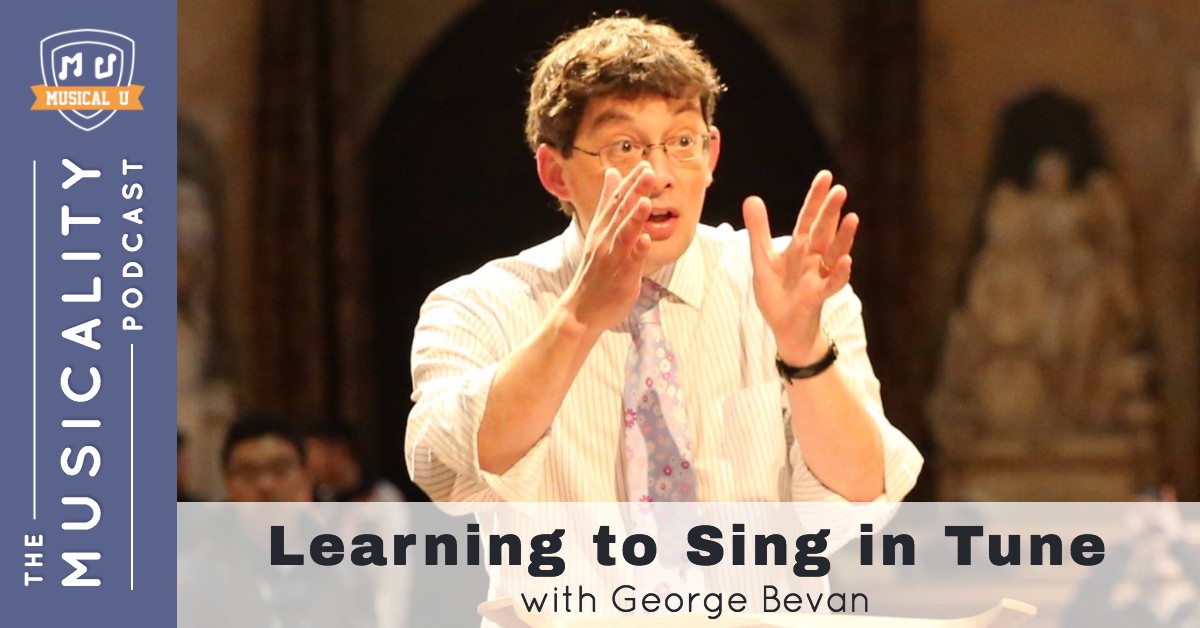
Learning to Sing in Tune, with George Bevan
If you’ve ever worried about being out of tune or off-key when you sing, don’t miss this interview with a man who’s found a solution.
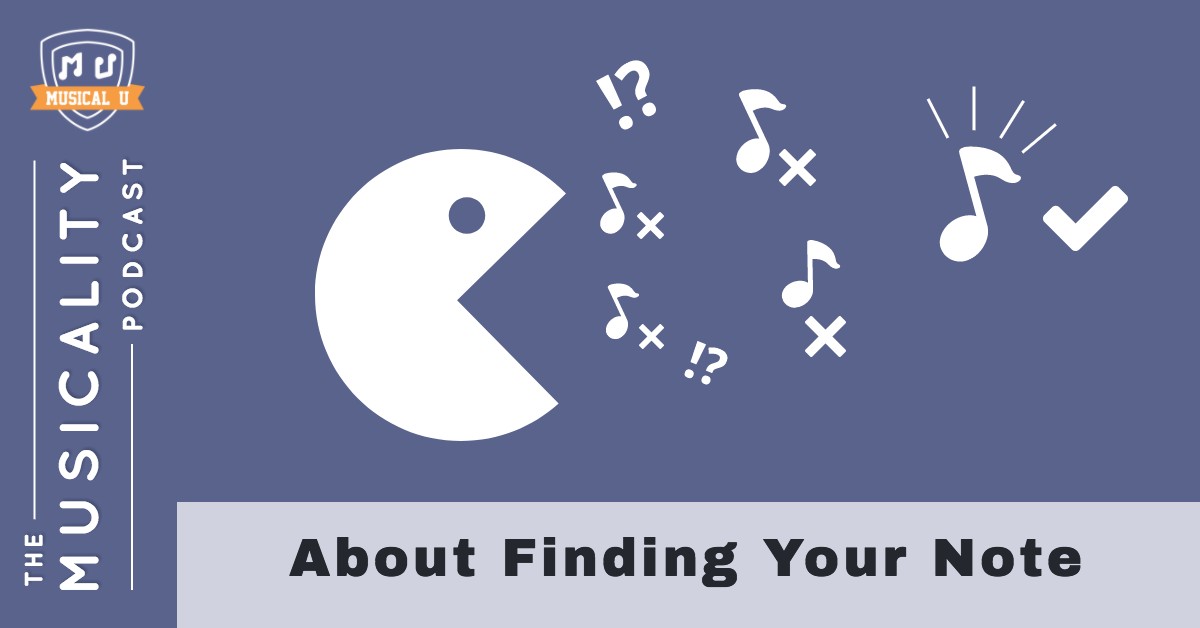
About Finding Your Note
Finding “Your Note” is a simple exercise that will help lay the foundation for singing in tune, learning relative pitch, and even sight-singing. Try it out!


Join Musical U
Musical U membership provides you with dozens of training modules, tools for goal-setting and planning, and a friendly, supportive community who will help you succeed.
Start reaching your true musical potential:

Listen/Watch The Podcast:

Ear Training Apps
Download free ear training apps to help you improve your ear for music: