
Can’t remember the bass riff from your favorite tune or just want to write down a sweet drum beat playing in your head? Figure out complex rhythms in a snap with Apple’s Garageband. A user-friendly music software program included with every Mac, Garageband allows any music enthusiast to mix beats, record, and produce original music. You can use this simple software to work on basic ear training skills involving rhythm, pitch, melody, and harmony.
Garageband’s simple interface includes tracks for audio and MIDI, a score, basic playback controls, options for effects, a sound library, and even a virtual music keyboard you can toggle on and off again using key commands. Export music from Garageband directly into iTunes.
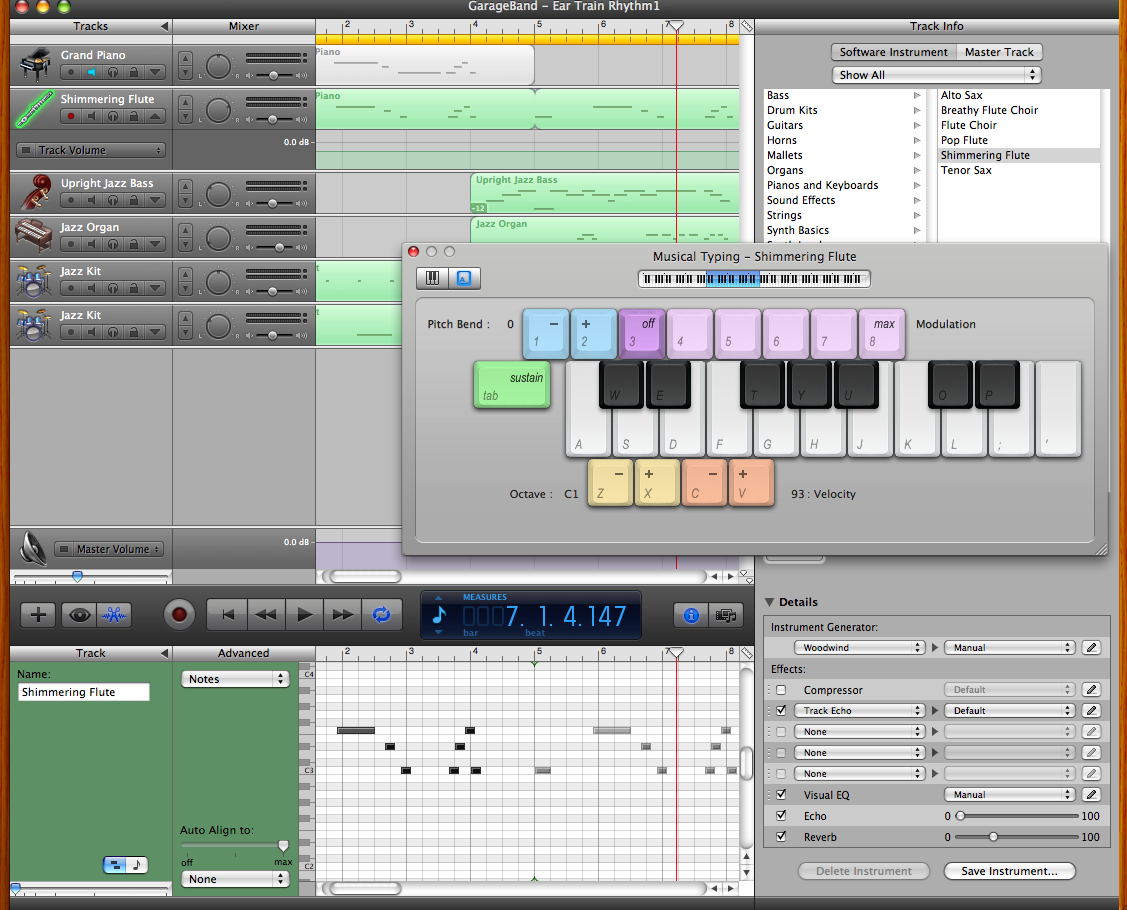
GarageBand User Interface
Follow these simple steps to develop your rhythm skills in GarageBand.
-
- Open a New ProjectThe default tempo is 120 bpm (beats per minute) and the time signature is 4/4 (or four beats per measure). You can change the project name, tempo, time signature, and key when creating a new project:
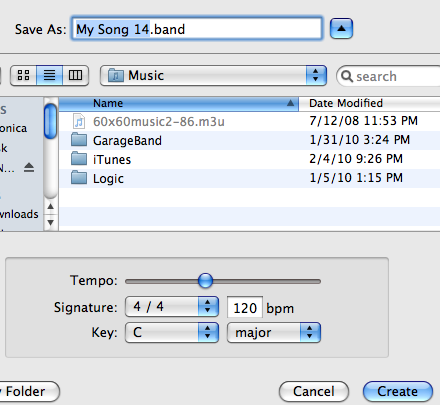

Opening a new GarageBand project
- Open a New ProjectThe default tempo is 120 bpm (beats per minute) and the time signature is 4/4 (or four beats per measure). You can change the project name, tempo, time signature, and key when creating a new project:
-
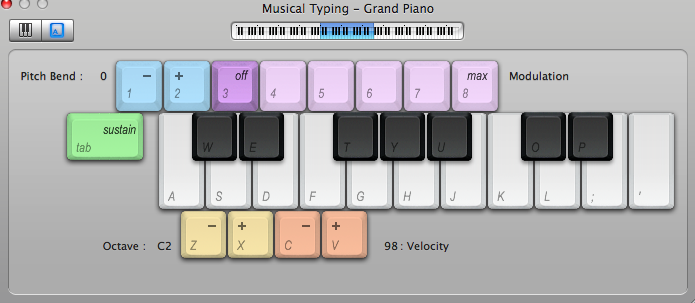
- Set UpGarageBand sets up a default MIDI software instrument. If you do not own a MIDI controller, select Musical Typing from the Window Menu to use your computer keyboard as the input. To change the instrument, select a track and change the instrument name under the software instrument library. Check metronome settings under the Control Menu.
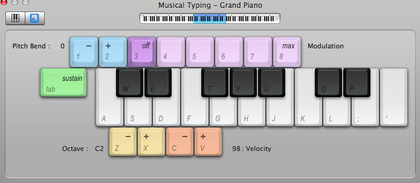

Use your computer keyboard to play music
- Set UpGarageBand sets up a default MIDI software instrument. If you do not own a MIDI controller, select Musical Typing from the Window Menu to use your computer keyboard as the input. To change the instrument, select a track and change the instrument name under the software instrument library. Check metronome settings under the Control Menu.
-
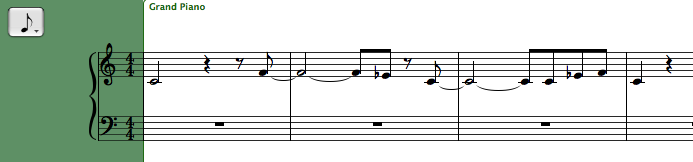
- RecordingHit the red Record button and begin playing the rhythm. Use the metronome as your guide. Newer versions of GarageBand allow you to record multiple takes. When you have the take you like, view the rhythms either as MIDI data or as notated music using the toggle options in the Edit Window:
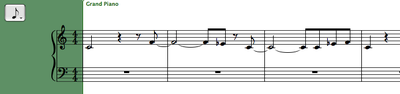

View your music using traditional rhythm notation
- RecordingHit the red Record button and begin playing the rhythm. Use the metronome as your guide. Newer versions of GarageBand allow you to record multiple takes. When you have the take you like, view the rhythms either as MIDI data or as notated music using the toggle options in the Edit Window:
-
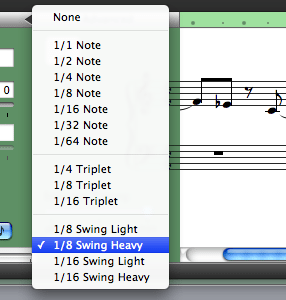
- TweakingGarageBand has advanced options to fix any mistakes made in recording. In the Edit Window, you can decide how to quantize (“fix”) your rhythm. GarageBand even has Swing options. Not sure how to enhance timing? Selecting 1/16 Note from the drop-down menu usually addresses any minor rhythmic mistakes.
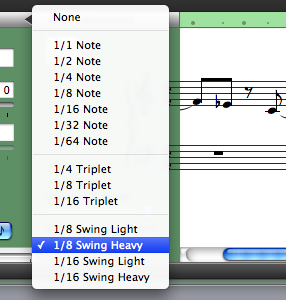

Use GarageBand’s automatic ‘quantizing’ to fix small mistakes easily
- TweakingGarageBand has advanced options to fix any mistakes made in recording. In the Edit Window, you can decide how to quantize (“fix”) your rhythm. GarageBand even has Swing options. Not sure how to enhance timing? Selecting 1/16 Note from the drop-down menu usually addresses any minor rhythmic mistakes.
- ApplicationYou can work with GarageBand to figure out basic to complex rhythms. Record while listening to your favorite drum fills to figure out crazy syncopations, print out the notated rhythm to hand out to your band, export the track to iTunes to work on ear training skills in your car, or use these rhythms to create new music.
Practice recording different beats that you hear each day. The more you practice with GarageBand, the easier it will be to recognize rhythmic figures. You can use GarageBand to work on other ear training skills like melody, pitch, and harmony once you become comfortable with the software.
Struggling with understanding a rhythm, or have GarageBand tips to share? Leave a comment below!
See also: Get Your Groove On: Beat Basics






Cool! Very glad to see an article like this about GarageBand. I've played music for years, reading music by sight, but I really need ear training to perform effectively. I'm only now recognizing Garageband is a great way to figure out rhythms. Would also like to know if you recommend GB for recognizing pitch. Transcribe! is the best software I've seen so far for that, but I'd rather stick with GB to avoid the cost and having to switch to another tool.
Thanks,
— Joe
Hello Joe,
Right now I would say that Apple's Logic has better tools for recognizing pitch. It depends on what you want to do with it. GB does have a Visual EQ and AU Pitch options which allow you to see the frequency of the vocals and tweak them, but if transcription is what you need, then I would not recommend GB.
I am not personally familiar with Transcribe, but looking at the website, that may be a better option depending on what you need.
Hope that helps!
S. Young